
Bootable USB drive and virtual BIOS
Prepare a drive that boots a PC, then set up the boot.
- Beginner
- 45 minutes
- 16 GB USB drive
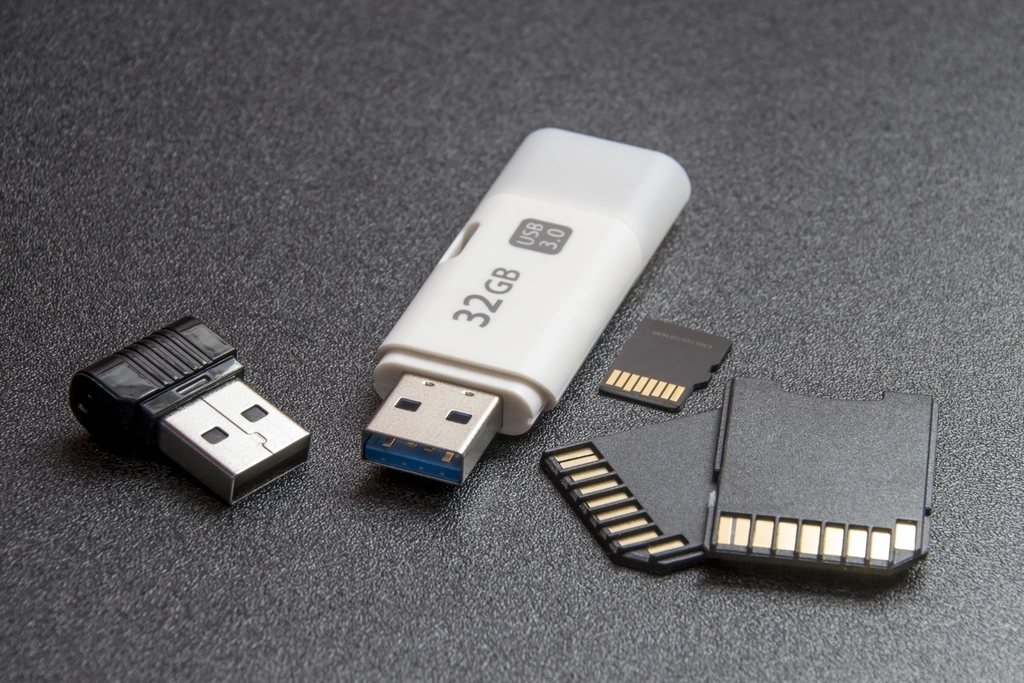
From the ISO to the boot
- 1. ISO imageA file that contains the system to install.
- 2. Bootable driveThe ISO is prepared on a USB drive.
- 3. BootThe PC starts from the drive, not from its disk.
In a VM, no drive needed: VirtualBox reads the ISO file directly.
Download a safe image
- Windows 11ISO image from Microsoft.Official website
- UbuntuFree and open source.Official website
Check the file in a terminal, then compare it with the fingerprint on the website:
certutil -hashfile ubuntu.iso SHA256
Different fingerprint? Do not use the file. Download it again.
A drive with Rufus
One ISO image per drive. Download Rufus
Plug in the drive and open Rufus. Check the drive, then click SÉLECTION (SELECT).
Choose your ISO image, then Ouvrir (Open).
Choose GPT and UEFI, then DÉMARRER (START).
Keep Image ISO (Recommandé) mode, then OK.
Last warning: the drive will be erased. If your files are copied, OK.
Wait until the end. When Rufus shows PRÊT (READY), click FERMER (CLOSE).
Try it here
Simulation: nothing is erased.
Warning: Rufus erases the whole drive. Copy your files first.
Several ISOs with Ventoy
A single drive for Windows, Ubuntu and your tools. Download Ventoy
Open Ventoy2Disk, check the drive, then click Install.
The drive will be erased: Oui (Yes).
Ventoy asks a second time: Oui (Yes).
Ventoy is installed: OK, then close.
Copy your ISO files to the drive, like photos. At boot, pick one from the list.
Secure Boot: at the first boot, a blue screen may ask you to add a key (Enroll Key). This is done once per PC.
Three words to know
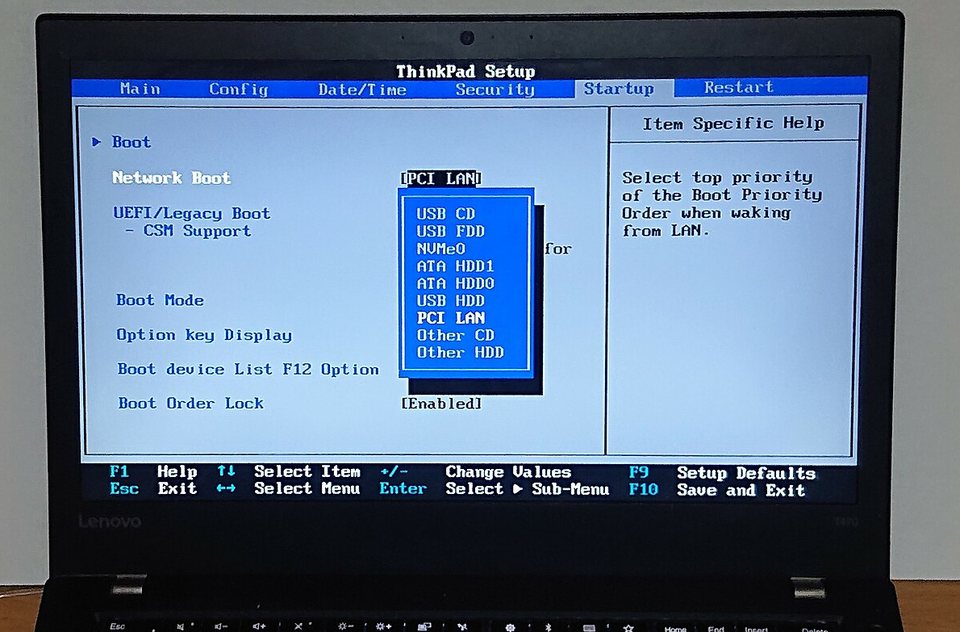
- Boot orderThe order of the devices tried at start-up.
- UEFIThe modern BIOS. It uses GPT disks.
- Secure BootIt blocks an unsigned boot.
Configure the virtual machine
With the VM off, click Configuration.
Choose Expert, then System. Scroll down and tick UEFI, then Secure Boot.
Click Reset Secure Boot Keys and confirm: without these keys, VirtualBox refuses Secure Boot.
In Storage, click Vide (Empty), then the blue disc to choose the ISO.
The ISO is in the drive: click OK.
Start and press Esc several times. Choose Boot Manager.
Choose CD-ROM: the machine boots from the ISO.
Lubuntu is signed: its menu appears, even with Secure Boot.
Try it here
Boot from the ISO, with and without EFI.
Boot a real PC from the drive
- Plug in the drive, with the PC off.
- Turn on and press the boot menu key several times. See your brand's key
- Choose the UEFI line with the drive's name.
- Exit without installing anything, unless your files are backed up.

Graded exercise out of 100
You need 80 to pass the lab.